 Toby Chui
db0dde124b
Minor wording change
Toby Chui
db0dde124b
Minor wording change
|
2 лет назад | |
|---|---|---|
| .. | ||
| agi_examples | 2 лет назад | |
| img | 2 лет назад | |
| README.md | 2 лет назад | |
README.md
WebApp Developer Guide
ArOZ Gateway Interface (AGI)
This folder holds all the examples for the Aroz Gateway Interface (AGI) API calls. An AGI API call can be executed in following ways. A The AGI scripts have slightly different functions in different execution scopes. The role of the execution is listed in the brackets below.
- Execute as WebApp initialization script (system)
- Execute as WebApp backend (system)
- Executes as user script via "Serverless" tool (current user)
- Execute as scheduled service via "System Scheduler" (current user)
Introduction
The AGI API provide most of the basic functions that you will need for programming your own WebApp. AGI implements a JavaScript like interface that works like PHP with Apache where you can pass in GET / POST parameter, calculate the results in backend and return the results to front-end.
Usage
In the WebApp examples below, we will be discussing a self written module with the following basic structure.
└── web/
    └── mywebapp/
        ├── init.agi
        ├── index.html
        ├── embedded.html
        ├── floatwindow.html
        ├── img/
        │   ├── icon.png
        │   └── desktop_icon.png
        └── backend/
            └── logic.js
As WebApp Initialization Script
Your WebApp will not be loaded by ArozOS unless an init.agi file is found at its root. Here is an example of the most basic init.agi script
//Define the launchInfo for the module
var moduleLaunchInfo = {
    Name: "MyWebApp",
	Group: "Media",
	IconPath: "mywebapp/img/small_icon.png",
	Version: "0.1",
	StartDir: "Dummy/index.html"
}

//Other startup logics here

//Register the module
registerModule(JSON.stringify(moduleLaunchInfo));
This is the full version of module launch info with all settings
{
    Name: "Music",
	Desc: "The best music player in ArOZ Online",
	Group: "Media",
	IconPath: "Music/img/module_icon.png",
	Version: "0.1.0",
	StartDir: "Music/index.html",
	SupportFW: true,
	LaunchFWDir: "Music/index.html",
	SupportEmb: true,
	LaunchEmb: "Music/embedded.html",
	InitFWSize: [475, 720],
	InitEmbSize: [360, 254],
	SupportedExt: [".mp3",".flac",".wav",".ogg",".aac",".webm",".mp4"]
}
Here are the meaning of all the fields
| Field Key | Usage | Data Type (Length) | Example |
|---|---|---|---|
| Name | Name of the WebApp | String | Music |
| Desc | Description of the WebApp | String | Just another music player |
| Group | Catergory of the WebApp | String | Media |
| IconPath | Path to find the module icon (and desktop icon) | String | Music/img/module_icon.png |
| Version | Version number of the WebApp | String | 0.1.0 |
| StartDir | Entry point of the webapp | String | Music/index.html |
| SupportFW | If the WebApp support floating windows | Boolean | true |
| LaunchFWDir | If Float Window mode is supported, the entry point when the user is launching the app in Float Window mode | String | Music/index.html |
| SupportEmb | If the WebApp support opening a file | Boolean | true |
| LaunchEmb | If a user use this WebApp to open a file, which entry point the user shall be directed to | String | Music/embedded.html |
| InitFWSize | The prefered size of floating window | Integer Array (2) | [475, 720] |
| InitEmbSize | The preferred size for embedded file player | Integer Array (2) | [360, 254] |
| SupportedExt | The extension that is supported by this webapp as default file opener | String Array | [".mp3",".flac",".wav",".ogg",".aac",".webm",".mp4"] |
WebApp Group
There are a few preset WebApp groups that the desktop can load.
- Media
- Office
- Download
- Files
- Internet
- System Settings
- System Tools
Other groups strings will be listed in "Others" in the desktop start menu.
Here are some reserved groups for special purposes. Use them only when you are handling development of special use cases.
- Utilities (This type of webapps will ignore user permission systems and allow all user to access it. It is use for HTML front-end side only webapps. )
- Interface Module (This is a special type of WebApp that allow a permission group to start it up full screen. For example, the "Desktop" is a Interface Module)
File Open Only WebApps
If you are writing an WebApp that do not provide browsing interface but only file opener (Your app cannot be used when the user is not opening a file, for example a PDF viewer), you can set "StartDir" as empty string. This will force Desktop not to render it into the start menu.
As WebApp Backend
Place your .js or .agi files in your webapp root folder (e.g. ./web/mywebapp/backend/logic.js), then in your webapp index file (e.g. ./web/mywebapp/index.html), call to the script using ao_module wrapper library. Here is an example of its usage
index.html
<html>
    <head>
        <!-- Include the ao_module wrapper -->
        <script src="../script/ao_module.js"></script>
    </head>
    <body>
        <!-- Your HTML code here -->
        <script>
            function runLogic(){
    			ao_module_agirun("mywebapp/backend/logic.js",
                {name: "Aroz"},
                function(resp){
                    	alert("Resp: " + resp);
                },
                function(){
                    alert("Oops. Something went wrong")
                }, 30)
            }
        </script>
    </body>
</html>
logic.js
SendResp("Hello " + name + "! Nice to meet you!");
The function definition is as follows.
function ao_module_agirun(scriptpath, data, callback, failedcallback = undefined, timeout=0)
For more examples, see the agi_examples folder.
AGI Serverless
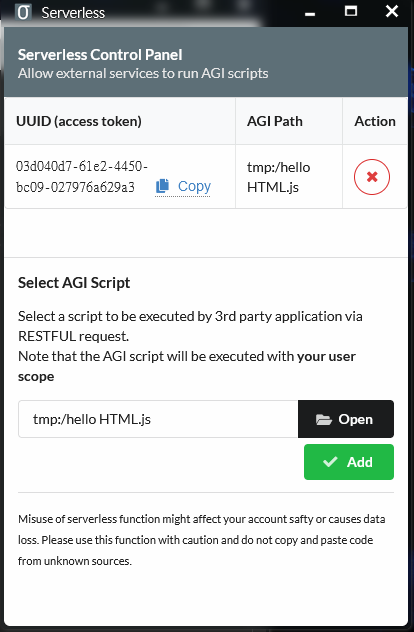
AGI scripts can also be used as serverless script to do simple things like updating server side files or webhook. Assgin the "Serverless" WebApp to a restricted user group and add your .js or .agi script to the serverless app. The app will generate an API endpoint for you for external access. Click on the "Copy" text to get the link to the access endpoint.
AGI in System Scheduler
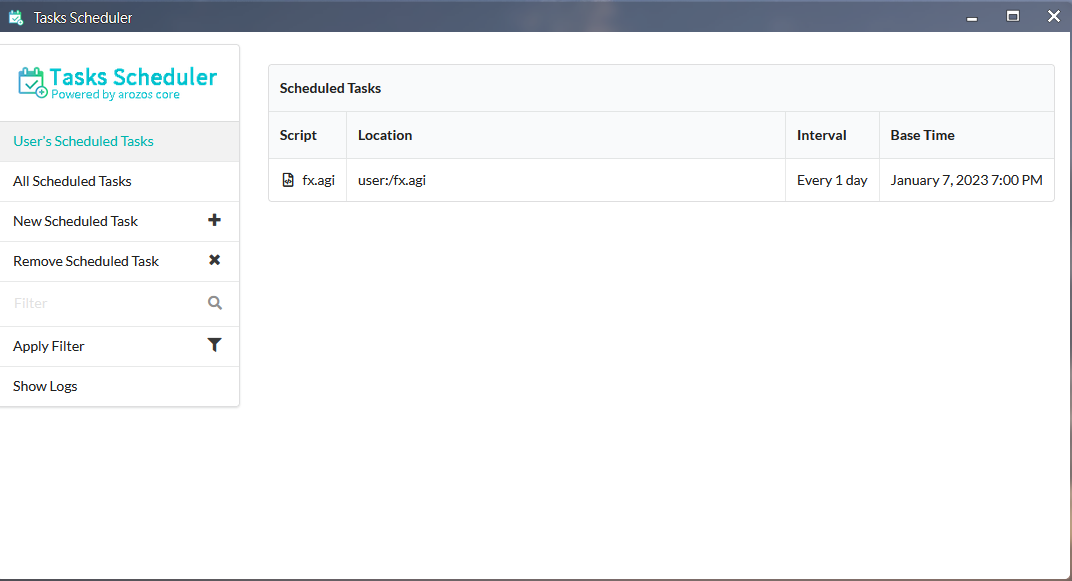
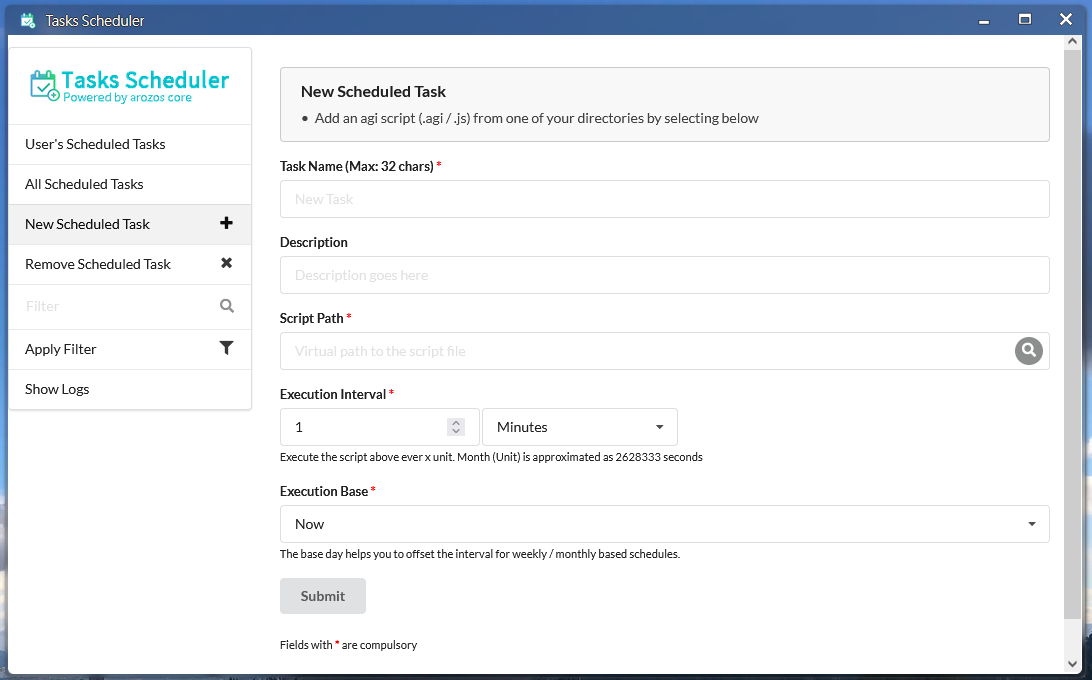
If you want to schedule the task to run in a fixed interval, you can use the AGI script in system scheduler. Assign the "Task Scheduler" WebApp to a restricted user and add the target script into the scheduler. The scheduler will than execute your script on the set interval.
Note that you should test your script with Serverless before putting it into Scheduler as it is much more difficult to debug when a task is added into the scheduler.